
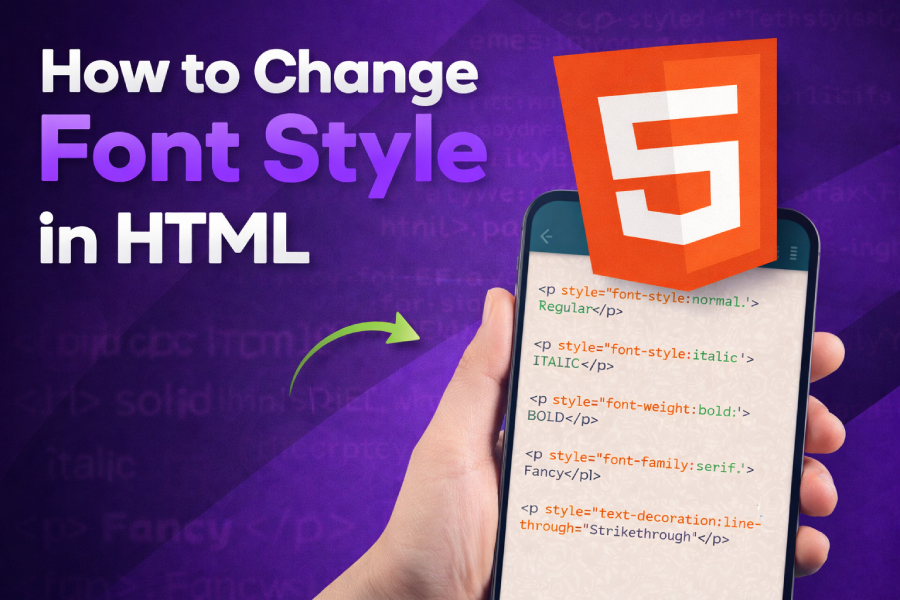
Changing the font style in HTML is vital to the design and readability of your website. A well-chosen font enhances the user experience, making your content easier to read and more visually appealing.
In this article, you’ll learn how to change font styles using different HTML and CSS techniques, from inline styles to importing custom fonts.
Using Inline Styles to Change Font Style
The simplest method to change font style in HTML is to use the style attribute directly within the HTML tags. Inline styles are effective for quick changes, but they are limited to individual elements. For example, you can change the font of a specific paragraph with the following code:
<p style=”font-family: Arial, sans-serif; font-size: 16px;”>This text is styled with Arial font.</p>
In this case, the font-family and font-size properties are applied directly to the paragraph element. While inline styles are useful for small, isolated changes, they are not ideal for large websites, as they clutter the HTML code and are hard to maintain.
To explore more creative font options, consider using a tool like the Freaky Font Generator to enhance your website’s typography with unique and eye-catching fonts.
Styling Fonts with CSS
For a more organized and scalable approach, CSS is the best choice. Unlike inline styles, CSS allows you to define font styles for an entire page or specific sections, making it more efficient. To apply font styling using CSS, you can use the font-family property within a CSS rule. Here’s an example:
body {
font-family: ‘Verdana’, sans-serif;
}
This rule applies the Verdana font to all text on the page. If Verdana is unavailable, the browser will default to any available sans-serif font. CSS gives you greater flexibility, allowing you to control other properties like font size, weight, and line height.
If you’re looking for advanced typography effects, you can also check out how to use the freaky font for more creative text styling techniques.
Importing Custom Fonts from Google Fonts
Custom fonts are a great way to differentiate your website and give it a unique style. Google Fonts provides an extensive library of fonts that can be easily integrated into your site. To use a Google Font, follow these simple steps:
- Choose your desired font from Google Fonts.
- Copy the provided link and add it to your HTML <head> section:
<link href=”https://fonts.googleapis.com/css2?family=Roboto&display=swap” rel=”stylesheet”>
- Apply the custom font in your CSS:
body {
font-family: ‘Roboto’, sans-serif;
}
This will load the Roboto font from Google Fonts and apply it to the body text. If Roboto is not available, the browser will use any sans-serif font.
For more tips on typography, you can check out how to get freaky font on Instagram, which provides an interesting approach to styling fonts for social media platforms.
The Power of Web Safe Fonts
Web safe fonts are pre-installed on most operating systems, ensuring that your text will display correctly across different devices and browsers. Using these fonts ensures consistency and faster loading times. Popular web-safe fonts include Arial, Times New Roman, and Courier New.
For example:
p {
font-family: ‘Arial’, sans-serif;
}
This rule applies the Arial font to all paragraphs. If Arial isn’t available, the browser will use a fallback sans-serif font. While web-safe fonts offer reliability, custom fonts can add a more personalized touch to your site.
Adjusting Font Size and Weight
Another essential aspect of font styling is adjusting the size and weight of your text. The font-size and font-weight properties in CSS allow you to control the appearance of your text. For example, you can make headings bold and increase their size:
h1 {
font-size: 36px;
font-weight: bold;
}
This will display your <h1> headings with a larger font size and a bolder style. Experimenting with different font sizes and weights helps create emphasis and improve the visual hierarchy of your content.
For additional tips on creating more dynamic typography, explore how to write destiny in cursive for creative text effects.
Best Practices for Choosing Fonts
While it’s tempting to experiment with many fonts, it’s best to follow some design principles when choosing fonts for your website. Stick to two or three complementary fonts—one for headings and another for body text. Too many fonts can create a chaotic look and confuse the reader.
Additionally, ensure that the text is legible by using appropriate font sizes. Body text should be at least 16px, while headings can be larger to provide emphasis.
If you’re looking for additional tips on font styling, visit why did my TikTok font change to gain insights into font-related challenges across platforms.
Advanced Font Styling Techniques
CSS offers several advanced properties that allow you to add more flair to your text, such as text-shadow, letter-spacing, and line-height. These properties can make your fonts stand out and add dimension to your content.
For example:
h2 {
text-shadow: 2px 2px 4px rgba(0, 0, 0, 0.3);
letter-spacing: 2px;
}
This will add a shadow effect to the text and increase the spacing between letters. These small adjustments can create a more professional, polished appearance in your website’s typography.
Conclusion
Changing the font style in HTML is a simple yet effective way to improve the design and readability of your website. Whether you use inline styles, CSS, or custom fonts, the key is to choose a font that enhances your content and aligns with your brand. Experiment with different techniques and follow best practices to achieve a clean, user-friendly design.
By carefully selecting and customizing fonts, you can significantly improve the visual experience of your website. For more inspiration on font styles and effects, visit resources like the Freaky Font Generator to explore new ways to style your text.